Hi there. I created my website on Neocities and used petrapixel’s layout generator for the main layout. It’s very mobile-accessible by default (from what I understand) but I think I tweaked with it a little too much and now it looks… not good.
I have several little issues that I want to fix, so I’ll try and be brief. Im sure they’re all pretty easy to solve but I’ve tried it by myself and it just got worse.
DeepSeek helped a little when I asked for help with a mobile-responsive code to use on another page template that wasn’t mobile-friendly, but I’m kind of sick of trying to talk and explain stuff to a machine just to get code snippets that. Still. Dont. Work!!! (Not as I wanted at least)
I’m using Phoenix Code to work on the site, and the screenshots are from my teeny tiny iPhone 13 Mini screen.
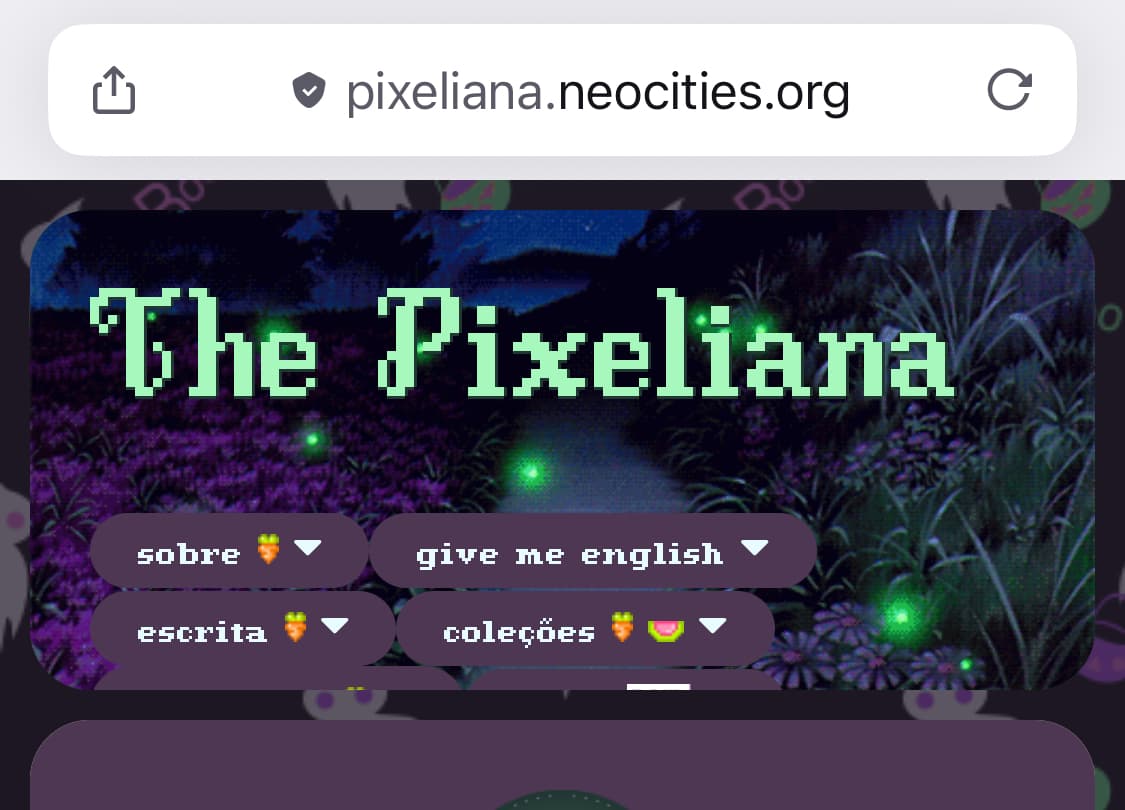
The header
On mobile, the last two links on the nav bar get cut in the header. Ive tried messing with the size but I might have edited the wrong thing? Idk.
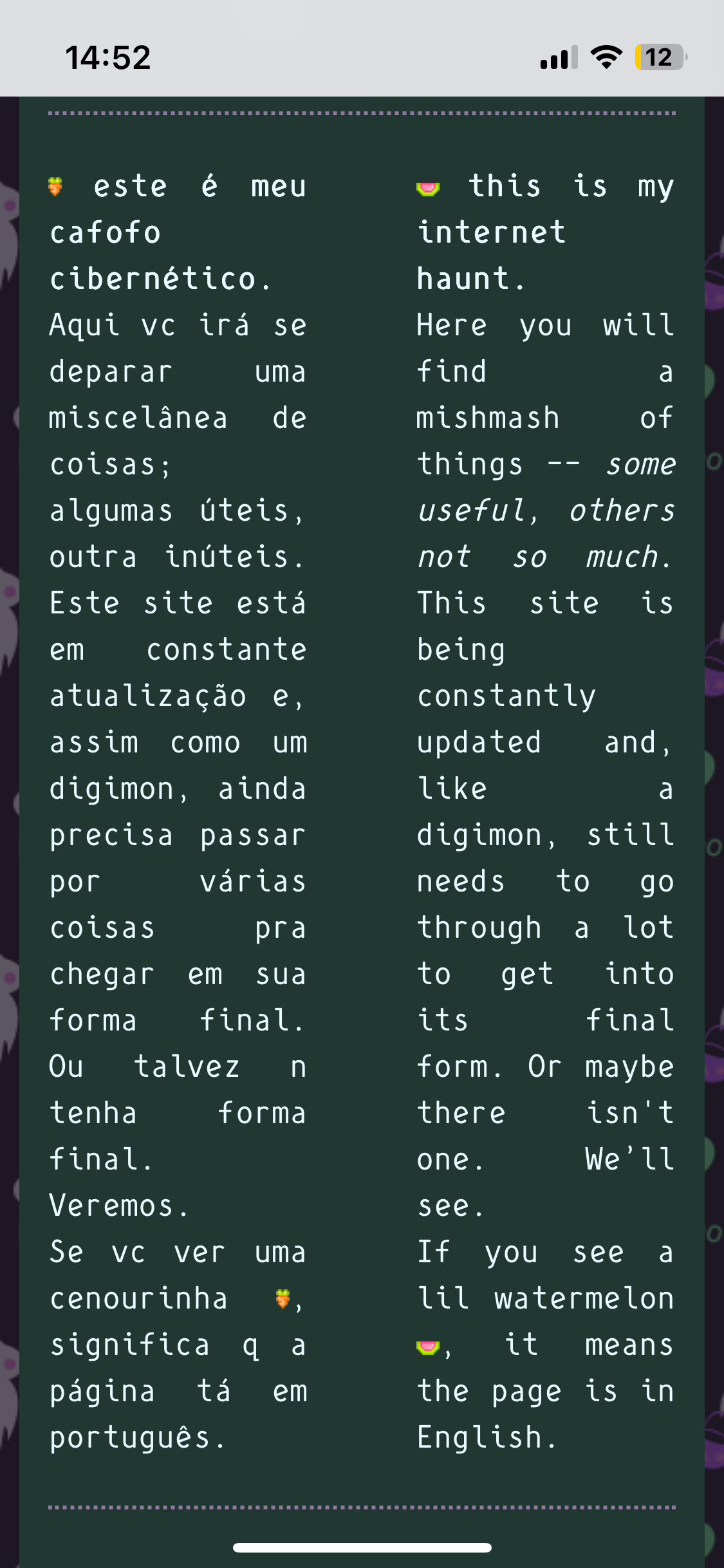
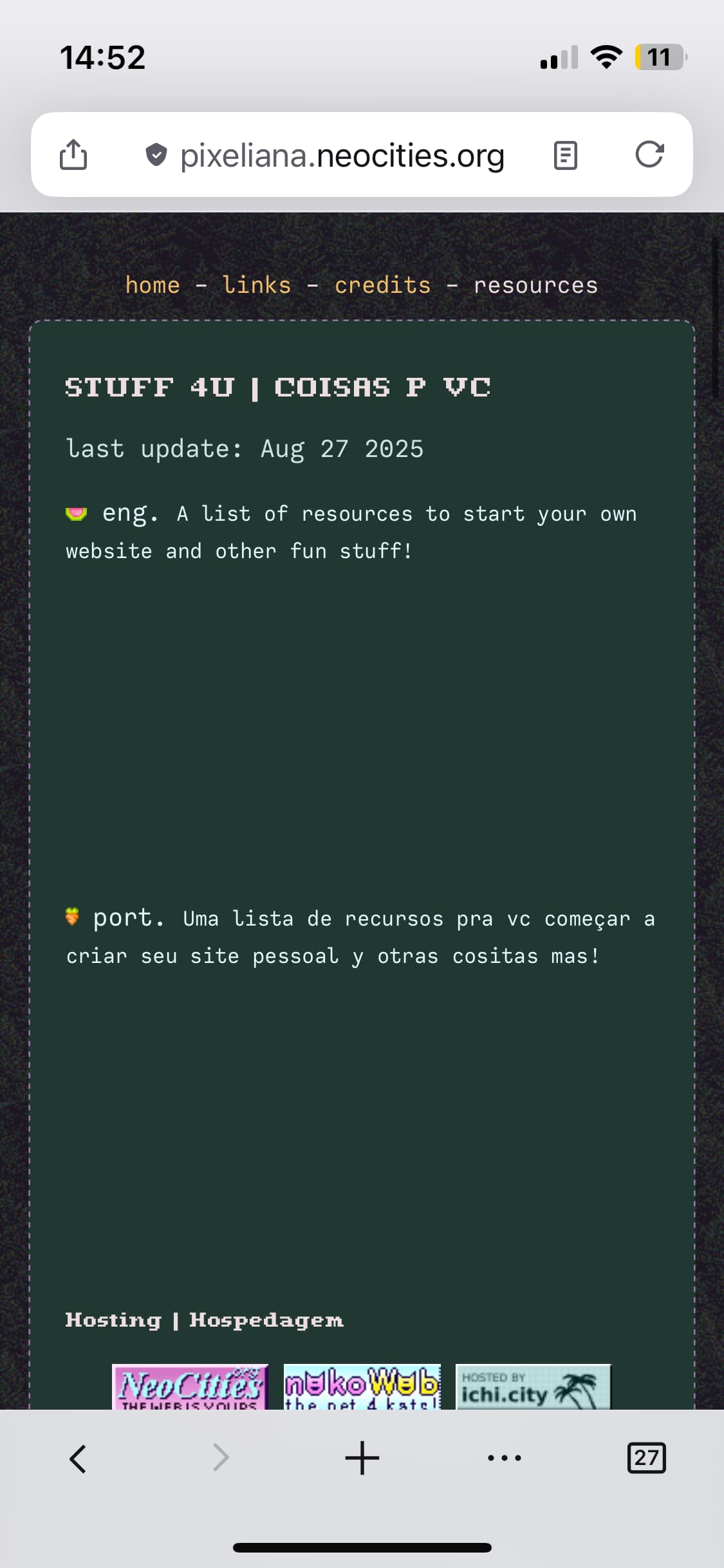
The two-column solution for my bilingual sections looks pretty awful on mobile (or not? what do you guys think? I don’t love it), but on the other hand, when I got the other mobile-friendly code, it created this awful big spacing between them.
Is the font size ok for mobile or is it too small? Anything I could improve in terms of responsiveness?
I’m trying to make it very accessible (alt texts, visibly distinguishable links, etc), and I’m slowly going over accessibility issues, but for now, my main concern is it being mobile-responsive (without making it look plain on desktop). A few of my friends got excited abt the idea of a personal website but some of them dont even own a computer… I dont wanna show them something that looks crappy at first glance.
Thanks in advance and sorry for the dumb questions!
this is because the navbar has “overflow:hidden”. change that to overflow:auto instead and it will be scrollable :) w3schools overflow
really thin justified columns are pretty hard to read i think. maybe you could make the left/portugese left-aligned and the right/english right-aligned? that might be cute. at least making it no longer justified would help i think. w3schools text-align
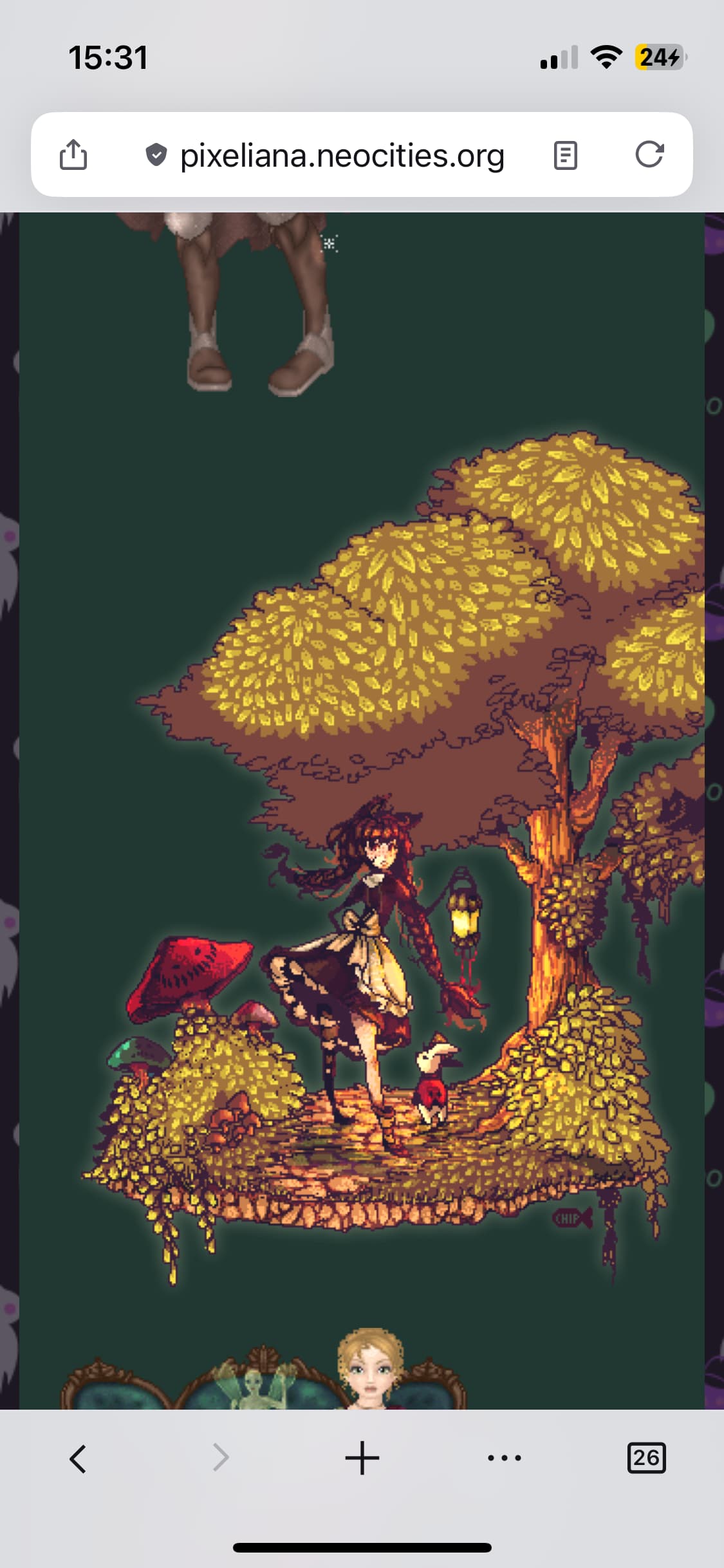
img {max-width:100%}
^^ is a rule that gives all images a maximum width of 100% of their container, preventing them from being bigger than the box they’re in.
the header probably has an overflow:hide property that makes the extra links disappear, id look into that
im not a fan of the 2 columns because it means you basically only have 1 word per line which is harder to read. id put the two columns on top of each other with maybe a “click here for english” link above tve Portuguese
(sorry im on my phone rn so i cant check the code for tbe spacing issue)
put max-width:100% to keep images from being too big
i can read the text size fine but i have no problem whatsoever with closeup vision so im not the best to ask about this
In general I recommend against asking chatbots about code, but that’s a topic for another day.
For font size I recommend using em units instead of px units because em units allow the font size to be adjusted according to the visitor’s browser settings. The default font size is 1em. You can use .9em to make text slightly smaller and 1.5em for text that should be bigger.
I’m with other folks on preferring only one column of text on small screens – can you say more about what you’re going for with that design? For instance, are you trying to avoid putting a section on top and making one language look like the “default“? If we know more about your priorities, we might be able to suggest more ideas.
Otherwise, for a simple approach, it should be possible to make an adjustment there using your media query. For instance, inside the media query you could add .two-columns {flex-direction: column} which converts two-column away from the default flex-direction: row. I recommend CSS Tricks’ CSS Flexbox Layout Guide for more on how flexbox works. For instance, as explained at that guide, you can use the gap property instead of padding so that your columns will look neatly separated on wide screens without being misaligned as a vertical column on mobile.
Oh, I never understood the difference between em and px, thanks for the clarification too. And thank you so much for the flexbox guide, I didn’t know this one! It’s much better to understand.
Thank you so much for the feedback, I think I also prefer just one column. I’m considering just using a simple toggle so the person can choose to read their preferred language. I just didn’t want to create separate pages for separate languages.
You could make it so that the header height is bigger on mobile or let it auto-size… that’s what I’d do instead of making it scrollable.
For images, as said above you can use the max-width property. If you don’t want to do it manually, consider where you’ve got these images and which ones are affected. You can specify that the images in a given div (say, the content div) should all automatically have this property or create a special div for certain images.
Things look fine for me (I’m on mobile right now) but my screen is pretty big
Edit: I don’t think you need to make separate pages for every language, you could just use different divs or something and have them change visibility depending on the language someone has chosen, I think.
If you want to use cookies to remember a visitor’s language settings, you could set up something like that using the same approach as Solaria’s Theme Switcher.